Showing posts with label easy. Show all posts

Wednesday, 1 June 2016

Wi-fi hacking is not a big deal – Crack WPA2 Password in 5 steps !!!


Requirements:

  1. Wireless card (support promiscuous mode) 
  2. Access point with WPA2 and WPS enables 
  3. Linux installed PC(ubuntu,kali,mint,etc). 

STEP 1:Open our terminal (CTRL+ALT+T) and type airmon-ng (view tips and tricks how to create keyboard shortcut on kali linux)
this command will lists our wireless card that attached with our system.

STEP 2: The next step we need to stop our wireless monitor mode by running airmon-ng stop wlan0

STEP 3: Now we ready to capture the wireless traffic around us. By running airodump-ng wlan0 our wireless interface will start capturing the data.


From the picture above, we can see many available access point with all the information. In the green box is our victim access point which is my own access point

REFERENCE

  • BSSID (Basic Service Set Identification): the MAC address of access point.
  • PWR: Signal level reported by the card. 
  • Beacons: Number of announcements packets sent by the AP .
  • #Data: Number of captured data packets (if WEP, unique IV count), including data broadcast packets. 
  • #/s: Number of data packets per second measure over the last 10 seconds. 
  • CH: Channel number (taken from beacon packets). 
  • MB: Maximum speed supported by the AP. If MB = 11, it's 802.11b, if MB = 22 it's 802.11b+ and higher rates are 802.11g. 
  • ENC: Encryption algorithm in use. 
  • CIPHER: The cipher detected. TKIP is typically used with WPA and CCMP is typically used with WPA2. 
  • AUTH: The authentication protocol used. 
  • ESSID: Shows the wireless network name. The so-called “SSID”, which can be empty if SSID hiding is activated. 

STEP 4
: From the step 3 above, we can find access point with encryption algorithm WPA2 and note the AP channel number. Now we will find out whether target AP has WPS enabled or not wash -i wlan0 -c 8 -C -s

If the WPS Locked status is No, then we ready to crack and move to step 5.

STEP 5: The last step is cracking the WPA2 password using reaver.
reaver -i <your_interface> -b <wi-fi victim MAC address> –fail-wait=360

Because we already get the information from step 3 above, so my command look like this:
reaver -i wlan0 -b E0:05:C5:5A:26:94 –fail-wait=360.


it took about 5 hours to crack 19 characters WPA2 password from my Kali virtualBox, but it depend with our hardware and wireless card.

How professionals access task manager in windows OS ? !!!!

Task Manager shows you the programs, processes, and services that are currently running on your computer. You can use Task Manager to monitor your computer’s performance or to close a program that is not responding.


If you are connected to a network, you can also use Task Manager to view network status and see how your network is functioning. If more than one user is connected to your computer, you can see who is connected, what they are working on, and you can send them a message.


Way 1: Open the app through taskbar.
Right-click blank area on the taskbar, and choose Task Manager in the context menu.

Way 2: Turn on Task Manager from Quick Access Menu.
Right-tap the lower-left corner to open the menu, and then select Task Manager on it.


Way 3: Open Task Manager in Start Menu.
Step 1: Tap the bottom-left Start button and choose All Apps in the menu.


Step 2: Open the Windows System folder.


Step 3: Click Task Manager to open it.


Way 4: Open this program in Control Panel.
Step 1: Enter Control Panel.
Step 2: Input task manager in the upper-right search box, and tap Task Manager in the results.

Way 5: Start Task Manager via Run.
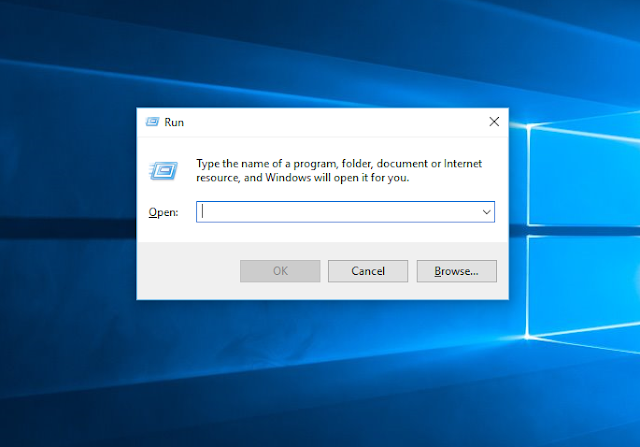
Press Windows+R to open Run dialog, enter taskmgr and tap OK.
Way 6: Open the program from Search panel.
Step 1: Press Windows+C to open Charms Menu, and choose Search on it.
Step 2: Enter task and click Task Manager.
Tip: There are two options named Task Manager on the Search Panel, and you can choose either of them.
Way 7: Access Task Manager with the help of Command Prompt.
Step 1: Click the Start button, enter cmd in the empty box and tap Command Prompt.
Step 2: Type taskmgr and press Enter.
Way 8: Open it through Windows PowerShell.
Step 1: Tap the Search button on the taskbar, type windows powershell and click Windows PowerShell to enter it.
Step 2: Input taskmgr and hit Enter.
Way 9: Open Task Manager from Ctrl+Alt+Del options.
Press Ctrl+Alt+Del and choose Task Manager from the choices.

Tuesday, 31 May 2016

Hide hard disk or partition inside windows(XP/VISTA/7/8/8.1/10) without using any software or application

note:You should first sign in using an administrative account for              doing this.


STEP 1: Press window key + R or select Run from start menu                   to launch the Run window.


STEP 2: Type in diskmgmt.msc and press enter key/ok button.

   
   STEP 3 : The disk management windows opens.

 STEP 4 : Right click on the partition/local disk to be hidden                      and select change drive letter and paths


STEP 5 : On the pop-up windows click remove button and then                 click ok 


   Now u can see that no label is displayed on your drive.


  The drive will not be visible in windows explorer ,this PC/My    computer etc. This is the safest way of hiding a whole    partition/local disk since there is no data loss or fragmentation  in this method.

The partition can be made visible by following steps 1 to 4 and then in the pop-up windows click add . Then click ok in the new popup window.


Now you can see that the drive letter or label reappears.


The partition will reappear in  explorer, my computer etc.


Wednesday, 25 May 2016

How to force windows 8/8.1 to go to the desktop instead of the Start screen when they signing in

Steps to force windows 8/8.1 to directly go to the desktop instead of the Start screen when they signing in

This setting allows users to go to the desktop instead of the Start screen when they sign in.

step 1: Open run ( Press window key + R)


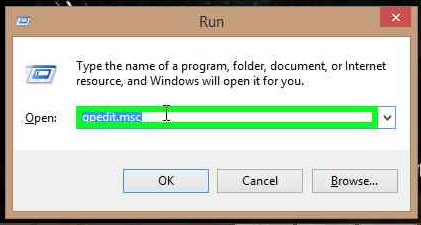
Step 2: Type in gpedit.msc and press Ok.


Step 3: Click on Administrative Template at left side of the Local                group policy editor window.


Step 3: In the Administrative template double-click on Start menu                and Taskbar directory.


Step 4: Then double-click on Go to the desktop instead of start                    when signing in.

Step 5: On the new window click on enable


If you enable this policy setting, users will always go to the desktop when they sign in.

If you disable this policy setting, users will always go to the Start screen when they sign in.


If you don’t configure this policy setting, the default setting for the user’s device will be used, and the user can choose to change it.

Step 5: Then click ok.


Sunday, 22 May 2016

How to disable startup applications in windows PC(windows 8/8.1/10)

How to disable startup applications in 

Windows 10 PC 

This method is applicable in windows 8/windows 8.1/windows 10

STEP 1: Open taskmanager(don't know how? click here for tutorial )

                                               
STEP 2: click on start-up


STEP 3: Select the unnecessary application/program from the sart-up list (the program that you intent to disable from startup)


STEP 4: Click on disable button at the bottom right corner of                   the window. 


Now you can see that the application status is displayed as disabled. These disabled applications will not run at startup.


Thursday, 19 May 2016

How to Install WhatsApp on PC(6 steps)


INSTALLING BLUESTACK


STEP 1:Download and install BlueStacks App Player

  • BlueStacks is an Android emulator for Windows and OS X. You can use it to run Android-only apps without having to use an Android device. BlueStacks is available for free from the BlueStacks website.
  • If you are using Windows, download the BlueStacks Windows installer. If you are using a Mac, be sure to download the Mac version instead.
  • When installing BlueStacks, make sure that "App store access" is checked.

click here to download bluestack for your PC

or


Image titled Install WhatsApp on PC Step 2

STEP 2:Start BlueStack for the first time

  • BlueStacks will take a few moments to install the included apps. 
  • Once it starts, you will be taken through a quick tour of the interface. 
  • After the tour, the App Store will initialize.


Image titled Install WhatsApp on PC Step 3


STEP 3:Sign in with your Google account

  • In order to access the App Store, you will need to have a Google account. 
  • This is because BlueStacks is an Android emulator, which requires a Google account to download apps. 
  • You can either enter in an existing Google account or create a new one within the app.

INSTALLING WATSAPP


Image titled Install WhatsApp on PC Step 4


STEP 4:Open google play store

  • Click the magnifying glass icon in the upper-left corner of the BlueStacks window. 
  • This will open the Google Play Store.
  •  If this is your first time running it, you will be asked to accept the terms and conditions.

STEP 5:Search for WatsApp

  • Click the magnifying glass icon in the upper-right corner of the Google Play Store window. 
  • Type "WhatsApp" into the search field and select it from the list of results.
  • You can usually find WhatsApp in the top row of apps when you first open the Google Play Store as well.
Image titled Install WhatsApp on PC Step 6


STEP 6:Download and install the app

  • Click the "Install" button at the top of the WhatsApp app page.
  •  A list of permissions will be displayed, which you will need to agree to in order to continue.
  •  When you click "Accept", the app will be downloaded and installed. 
  • You will be notified when it's ready to use.