Showing posts with label watsapp. Show all posts

Wednesday, 1 June 2016

You can now use Watsapp in Google Chrome browser!!!! ...SEE HOW ?

We all Know that we Can Use Whatsapp on our Windows PC using Android Emulators like Bluestacks. That is an old story Right? But Now you can Use Your favorite Messaging app on your Google Chrome Browser too. Lately we have seen many updates in Whatsapp like 2 blue Ticks that shows read receipt. 


This time Watsapp have announced that Whatsapp will be available as Web Client for Google Chrome Users.

So, you guys might be wondering how!!!!

Before moving on to the steps let us first have a look at things you will need.

REQUIREMENTS

  • Latest Version of whatsapp installed in your Android.
  • Google Chrome Browser Installed on your PC.
  • Internet Connection in your Phone & PC.

If you have setup all the above mentioned requirements, follow the instructions given below.


Step 1: Click Here or Copy pastethis URL https://web.whatsapp.com in the address bar of your Chrome browser and hit Enter.


Step 2: You will see QR Code which you will have to Scan from your Phone, So open Whatsapp on your Android, Go to Menu > Whatsapp Web and Scan that QR Code on your Computer Screen. If you don’t see Whatsapp Web option then you need to Update your Whatsapp.


Step 3: Thats it you just need to Scan that QR Code to pair Whatsapp on your Phone and Whatsapp Web Client. If everything goes Right, then now you will be able to see your Messages on your Web Client in Google Chrome.


note
  • Remember to have Upto Date Version of WhatsApp on your Phone and also Keep in mind that your phone needs to be connected to internet in order to send and receive messages in your Web Client.
  • if you are a Firefox user, then you might just want to use Google Chrome to use Whatsapp in Google Chrome Browser. Likewise, IOS users will also not be able to use the Web client.
Before you Go

I would like to Share Couple of Pro tips that will make your experience better of using Whatsapp in Google Chrome.
Pro Tip 1: Make a Desktop application of Whatsapp Web. Simply Go to https://web.whatsapp.com , Then Click on 3 lines which are at right top corner of your Browser which says Customize and Control Google Chrome.

Now Scroll down and hover your mouse on More tools then Click on Create Application Shortcuts, a pop up will ask you where you want to store it on Desktop or Start menu or both. Select any of your Choice and Click on Create.

Pro Tip 2: Pin the Web Client tab in your Chrome, Again just go to https://web.whatsapp.com, Once loaded, Right click on that tab and select “Pin Tab”, now that tab will be pinned to extreme left of your Computer Screen. You will also be able to see Notification Bubble on that pinned tab whenever you receive a new Message.
To unpin the tab, just right click on it again and click on Unpin the tab.

So that is it for now, You learned how to Use Whatsapp in Google Chrome using Whatsapp web Client and Couple of Pro tip which i hope you will like it. So let me know what do you think about this update by whatsapp in the Comments below.

Monday, 30 May 2016

Secret WhatsApp Tips and Tricks You Probably Don’t Know


WhatsApp is definitely the best mobile messaging app ever made for Android, iPhone, Blackberry, Nokia & Java Mobiles. If you have active Internet connection on your mobile phone, then with the help of this app you can send unlimited messages, videos, audios, images to anyone. As we all know that the WhatsApp’s popularity has grown so popular that many WhatsApp tips and tricks coming in the internet. It is estimated that WhatsApp has more than 400 million active users around the world. Due to it’s fast message delivery service and some other cool features many people were attracted towards it. Here in this tutorial we are sharing some of the best Whatsapp Tips and Tricks Collection for every user who are using Whatsapp app on their mobile phones or PC.


1. Use WhatsApp without your Mobile Number

You can use WhatsApp without number that means not with your own number. So this trick may help you to do that easily and you can activate WhatsApp with a number which is not your own i.e fake. Just follow the below steps and enjoy.
  • If you are already using WhatsApp, uninstall it from your device completely. Download and install it again.
  • Lock your messaging service simply by changing the flight mode.
  • Now open WhatsApp and add your number to it. So it will not be able to send the message to the server it will ask you to choose an alternative method to verify.
install-whatsapp-without-phone-number
  • Choose the verify through message option and fill up your email address and then Click on ‘Send’ option and without waiting click on ‘Cancel’. This terminates the authorization process.
  • Now, you are required to forge messages. Install the message Spoof text message for Andriod and Fake- a- Message for iPhone.
  • Spoofing method: Go to your Outbox -> Copy the message details to spoofer app -> Send it to spoofed verification.
  • Use the following details.
    To: +447900347295
    From: +[Country code][mobile number]
    Message: Your email address
  • A message will be sent through that spoofed number. You can use this number to connect with your friends

2. Hide “Last Seen” Timestamp

By default, WhatsApp shows a “last seen” timestamp, telling other users the last time you were on WhatsApp. It’s a great feature, but the function becomes really annoying because it reveals whether you are online or not. You can not hide from your friends and they’ll keep talking to you. So if you want to hide this ” last seen in the” time stamp follow the below mentioned steps.
hide-last-seen-on whatsapp
Earlier there are many third party Applications available in Google Playstore to hide ‘last seen’ feature. By the recent update, you can use this feature without installing any other apps.
  • Download the latest version of WhatsApp from the official website to enjoy this feature.
  • To hide last seen feature, Open WhatsApp, Go to Settings > Account > Privacy > Last Seen.
  • There you can select three options, Everyone, My contacts, Nobody. Select any one of them.

3. Spy and Read the Conversation of Your Friend

Is it possible to Spy into Whatsapp conversation of the your close friends and read their conversation? Yes, it is possible and i’ll explain you about this awesome trick through which you can spy your friend conversation. Just follow the below mentioned steps.
hack your friends whatsapp chat
  • Firstly, you need to do is, go to the MicroSD card and then click on the Whatsapp and later on on the Database option.
  • Immediately after you are done with the first step you’ll get two files such as,msgstore-yyyy..dd..db.crypt
    msgstore.db.crypt
  • After finding these two files, you just need to do is take these files from your friends mobile and then you will be easily able to read their conversations that they have done with their friends. You can open them using a simple text editor.

4. Backup And Restore WhatsApp Chats

WhatsApp makes automatic backups of your chats, but you can also make a manual backup. Follow these simple steps to restore your whatsapp chats.
whatsapp_android_restore_backup
  • On iOS, Go to Settings > Chat Settings > Chat Backup, then click Backup Now.
  • On Android, just go into Settings > Chat settings and tap Backup conversations to create a backup.
  • It will not backup your media, so you will need to use a file manager to backup the media files in /sdcard/WhatsApp/Media on your mobile.
  • There’s no way to restore chats directly from WhatsApp, so if you want to restore a backup just uninstall and reinstall WhatsApp.
  • While you begin WhatsApp just after the reinstalling your app, you should be prompted to restore your most recent backup.

5. Send files of other Extensions like Zip, Rar, PDF


share-pdf-exe-zip-apk-with-whatsapp
  • We all know that WhatsApp doesn’t support to send other files than audio and video formats. There is not any option to share documents, compressed files, and other files using WhatsApp. But with an additional app like Cloud Send you can send PDFs, APKs, Word documents and more using WhatsApp.
  • You can also use third party app like Whats Packed 2 ads to send any files of any size via WhatsApp. But make sure that both the sender and receiver must have Whats Packed 2 ads application installed on their smartphone.

6. Disable WhatsApp Auto Image Download

By default WhatsApp download all images, videos and voice notes to your memory which will create lot of mess in your gallery. Sometimes this may kill your mobile data and battery life when you have a very low data balance on your mobile. So this trick will be helpful to stop auto download of images or video.
Settings > Chat Settings > Media Auto Download. Select an option from all three which suits you.  If you want to completely disable auto download, make all options to No Media.
Diable-auto-download-of images videos in whtasapp

7. Hide your WhatsApp Profile Picture(DP)

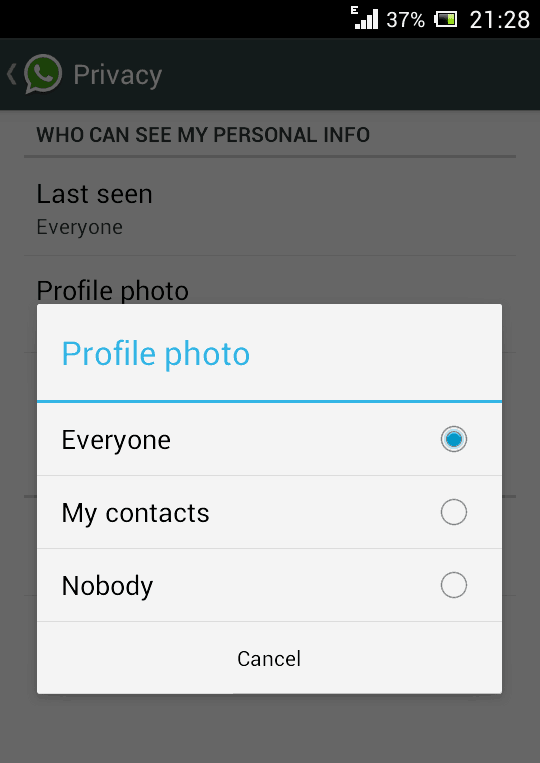
Due to privacy concerns , or anything else , if you want to hide your profile picture this trick will definitely help you. Hiding Profile Picture option is only available for the latest version of WhatsApp. If you are not using latest version then download it and after installing go to Settings > Account privacy. Then click on Profile Photo, select any of the three options according to your needs – Everyone, My contacts, Nobody.
hide-profile-pic-whatsapp

8. Change Your Friend’s Profile Picture

You can change your friend’s profile pic into your WhatsApp by using this new and an awesome trick to prank your friends. Follow the below mentioned easy steps to do it.
Change Your Friend’s Profile Picture on whatsapp
  • Choose a profile picture for your friend. Use Google Image search for cute looking monkeys and donkeys or weird looking people.
  • Resize the image to 561×561 pixels using Paint or Photoshop and name it with your friend’s mobile phone number.
  • Save the image to the SD >> card WhatsApp >> Profile Pictures. Overwrite the existing file (if necessary).
  • Disable WiFi and data network. If you don’t WhatsApp will automatically update the picture.
  • Now, you show your friend the pic your profile WhatsApp instant panic invite her face.
Note: This is not a hack, but simply a trick to change your friend’s profile picture only on your device. This is meant for fun purpose only.

9. Create A Fake / Chat Conversation

This trick is going viral these days and many people are creating funny fake conversations and posting the screenshots over social media like Facebook and Google Plus. By using an app like WhatSaid-Whatsapp Prank you can easily create fake conversations and play pranks on your friends.

Download WhatSaid App Here

Whatsaid - Whatsapp Prank app for whatsapp
You will be able to create fake conversations with anyone by adding your photos, name it and create your own posts ( on both sides). Don’t use it to spoil someone’s life please.

10. Hide Two Images In One

Do you want to send an image to your WhatsApp friend which will first look like a beautiful one but when he/she click on it, the image will change to another one? Then just follow below steps…
magiapp for whatsapp

  • Now after installing this wonderful app just fire it up and then you will see interface something lie in the image on the right.
  • Now just click on the True Image option and choose your original image and then click on the Fake Image option and choose your pranky image.
  • Now after selecting your images just press Do Magic ! option and voila! its done now just share your image with everyone.

Thursday, 26 May 2016

how to share animated or GIF images in WhatsApp

How do I share GIF images in WhatsApp without converting the GIF into a video?


METHOD I


  • Renaming Extension of gif file to .mp3 or any other extensions which has large container size

​
​

The User should rename the downloaded audio file to .gif afterwards.


METHOD II

Send as .zip file or archieve or .rar file


Thursday, 19 May 2016

How to Install WhatsApp on PC(6 steps)


INSTALLING BLUESTACK


STEP 1:Download and install BlueStacks App Player

  • BlueStacks is an Android emulator for Windows and OS X. You can use it to run Android-only apps without having to use an Android device. BlueStacks is available for free from the BlueStacks website.
  • If you are using Windows, download the BlueStacks Windows installer. If you are using a Mac, be sure to download the Mac version instead.
  • When installing BlueStacks, make sure that "App store access" is checked.

click here to download bluestack for your PC

or


Image titled Install WhatsApp on PC Step 2

STEP 2:Start BlueStack for the first time

  • BlueStacks will take a few moments to install the included apps. 
  • Once it starts, you will be taken through a quick tour of the interface. 
  • After the tour, the App Store will initialize.


Image titled Install WhatsApp on PC Step 3


STEP 3:Sign in with your Google account

  • In order to access the App Store, you will need to have a Google account. 
  • This is because BlueStacks is an Android emulator, which requires a Google account to download apps. 
  • You can either enter in an existing Google account or create a new one within the app.

INSTALLING WATSAPP


Image titled Install WhatsApp on PC Step 4


STEP 4:Open google play store

  • Click the magnifying glass icon in the upper-left corner of the BlueStacks window. 
  • This will open the Google Play Store.
  •  If this is your first time running it, you will be asked to accept the terms and conditions.

STEP 5:Search for WatsApp

  • Click the magnifying glass icon in the upper-right corner of the Google Play Store window. 
  • Type "WhatsApp" into the search field and select it from the list of results.
  • You can usually find WhatsApp in the top row of apps when you first open the Google Play Store as well.
Image titled Install WhatsApp on PC Step 6


STEP 6:Download and install the app

  • Click the "Install" button at the top of the WhatsApp app page.
  •  A list of permissions will be displayed, which you will need to agree to in order to continue.
  •  When you click "Accept", the app will be downloaded and installed. 
  • You will be notified when it's ready to use.