Showing posts with label windows 10 update. Show all posts

Tuesday, 31 May 2016

Simple tricks to disable automatic updates in windows 10(Save your network data )

In this post I will show you the steps to disable automatic updates in windows 10 with detailed description and screenshots. 


In older versions of windows like windows XP/vista/7/8/8.1,it was really easy to disable windows updates from downloading automatically. The option is easily accessible from control panel on older version of windows (see the image below). 


screen shot of windows 7 control panel


But unfortunately Windows update option is not available in windows 10 control panel(see the image below). 


screen shot of windows 10 control pannel

There are two methods to disable automatic updates in windows 10,

1.Disable for metered connections only.
2.Disable automatic update for all typed of connections in              registry settings.

1.Disable for metered connections

So, if you don’t want Windows 10 automatically downloading updates on your home network connection, just set it as a metered connection. Windows 10 will automatically download updates when you connect your device to a non-metered network, or when you disable metered connection in pc settings. And yes, Windows will remember this setting for each individual network, so you can disconnect from that network and reconnect all you like.

STEPS

1.Open the Settings app, select Network & Internet, scroll down, and select “Advanced options” below the list of Wi-Fi networks. Enable the “Set as metered connection” option.


note:
This option only affects the Wi-Fi network you’re currently connected to, but Windows will remember this setting for each individual Wi-Fi network.

After enabling this option, Windows Update will say “Updates are available. We’ll download the updates as soon as you connect to Wi-Fi, or you can download the updates using your data connection (charges may apply.)” 

By marking a connection as metered, you’ve tricked Windows into thinking it’s a mobile data connection — for example, you might be tethering your PC to your smartphone. You can click the Download button to download and install updates at your leisure.


2.Disable automatic update for all typed of connections in registry settings.

There’s actually an option that will let you choose how updates are installed on your own schedule, but it’s buried in Group Policy. Only Professional, Enterprise, and Education editions of Windows 10 have access to the Group Policy editor. 

STEPS

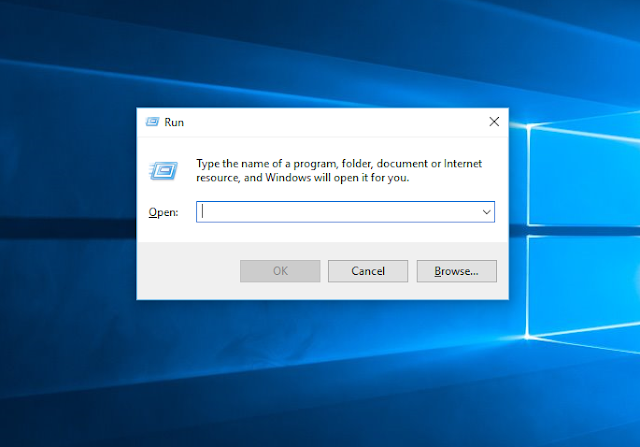
1. To access the group policy editor, press Windows Key + R, type in the following line into the Run dialog, and press Enter:

gpedit.msc


2.Select Administrative templates located at the left bottom of the group policy editor window.


3.Navigate to system folder and click on it.


4. Now double click on windows automatic updates


5.Select “enabled” and click ok button.
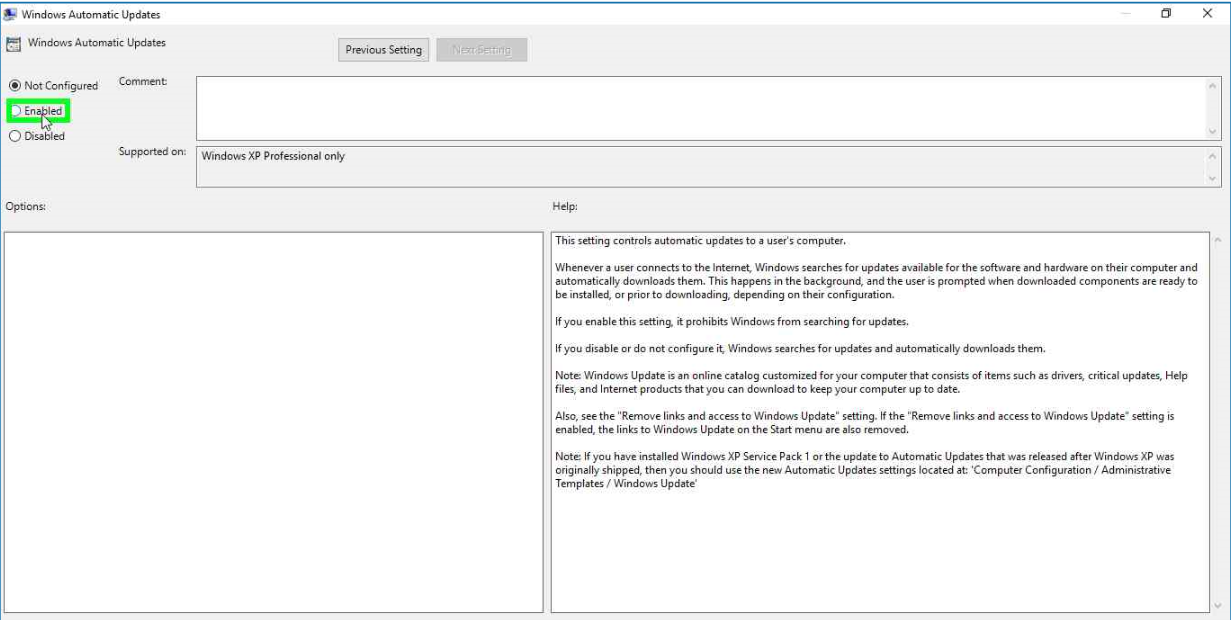


  • If you enable this setting, it prohibits Windows from searching for updates.

  • If you disable or do not configure it, Windows searches for updates and automatically downloads them.

Thursday, 26 May 2016

Windows 10 updates have serious problems:Even Microsoft agrees!


Microsoft finally went too far. The company’s obsession with forcing as many Windows 10 upgrades as possible saw it descend into dirty tricks, more typical of malware. The move has been widely condemned and even one of the company’s loyalist long term supporters labelled it a violation of trust that is “almost indescribable”.

And now Microsoft has been forced to issue a new warning to Windows 7 and Windows 8 users…


Having reversed the functionality of the ‘x’ close button to confirm rather than reject Windows 10 upgrade prompts, Microsoft has now buckled under public and media pressure to introduce a new failsafe warning prior to the installation beginning.


Windows 10 upgrade prompts now give this additional warning prior to upgrading. But using the x button to close it still acts as a confirmation. Image credit: Microsoft

In a statement issued to me the company said:

“Based on customer feedback, we’ve also added another notification that confirms the time of the scheduled upgrade and provides the customer an additional opportunity for cancelling or rescheduling the upgrade. If the customer wishes to continue with their upgrade at the designated time, they can click ‘OK’ or close the notifications with no further action needed.”

But this is certainly not enough.While the additional warning is welcome and will help reduce the number of Windows 7 and Windows 8 users hoodwinked into a Windows 10 upgrade they do not want, Microsoft has still fallen short of taking the most obvious first step: returning the normal functionality of the close button. Close both the standard upgrade prompt and this new scheduling prompt using the close button and Windows 10 will still take it as two confirmations to start installing.
New Windows 10 upgrade prompts on Windows 7 and Windows 8 turn the close button into a confirmation. Image credit: Microsoft

New Windows 10 upgrade prompts on Windows 7 and Windows 8 turn the close button into a confirmation. Image credit: Microsoft


The ramifications of this also spread more widely. From now on Windows 7 and Windows 8 users will find the close button retains opposing functionality. For Windows 10 upgrade prompts it will act as a confirmation but everywhere else it will act as a cancellation.

Yes, it’s nonsensical but it’s also a measure of how far Microsoft is prepared to go to achieve its stated goal of one billion Windows 10 installations “within 2-3 years”.

So is there any light on the horizon? Thankfully yes. Because despite Microsoft’s increasingly farcical attempts to promote, pressure, push and now trick Windows 7 and Windows 8 users into Windows 10 upgrades this shouldn’t last much longer.

On July 29th the free upgrade period for Windows 10 will end and with this Microsoft has promised to scale back its nagging upgrade notices. Given most users who wish to upgrade should have done so by then, for everyone else this change cannot come soon enough…